Visualize NetRoute
Overview
NetRoute within Motadata ObserveOps delivers comprehensive network visibility by presenting a topological view of end-to-end network paths. This feature enables users to gain a clear understanding of traffic flow and routing across their infrastructure.
Real-time monitoring capabilities allow for the detection of route changes and the analysis of multi-path traffic, while hop-by-hop performance metrics highlight active paths and identify critical issues such as packet loss and slowdowns.
By providing historical path analysis, NetRoute facilitates in-depth insights into network availability, latency, and bandwidth utilization over time. This historical perspective is crucial for understanding network behavior and identifying recurring issues.
Dashboard
NetRoute dashboard houses the list of all the configured network paths. It displays the Path Name, Latency, Packet Loss, Source, Destination, and availability.
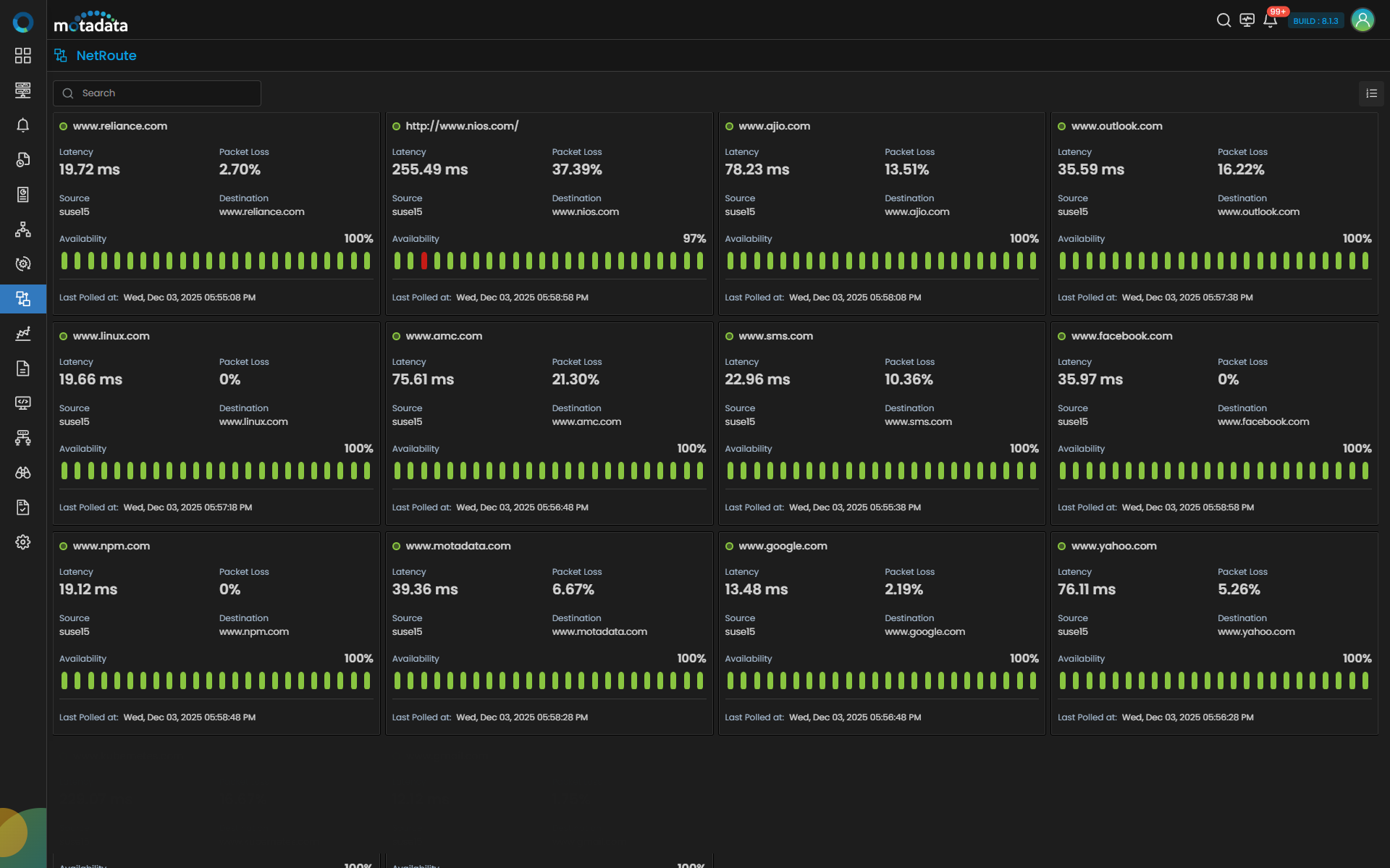
Grid View Toolbar
Click the Grid icon in the top right of the NetRoute screen to switch from card view to grid view. The grid view toolbar provides the following options to narrow down and export NetRoute data.
| Option | Description |
|---|---|
| Export As PDF | Downloads the current grid view as a PDF file. |
| Export As CSV | Downloads the current grid view as a CSV file. |
| Filter | Opens a filter panel to narrow down NetRoutes by attributes such as Path Name, Source, and Destination. Applied filters are shown as chips above the grid. |
Clicking on a Route Name in the dashboard opens detailed information about the NetRoute, as shown in the image below.
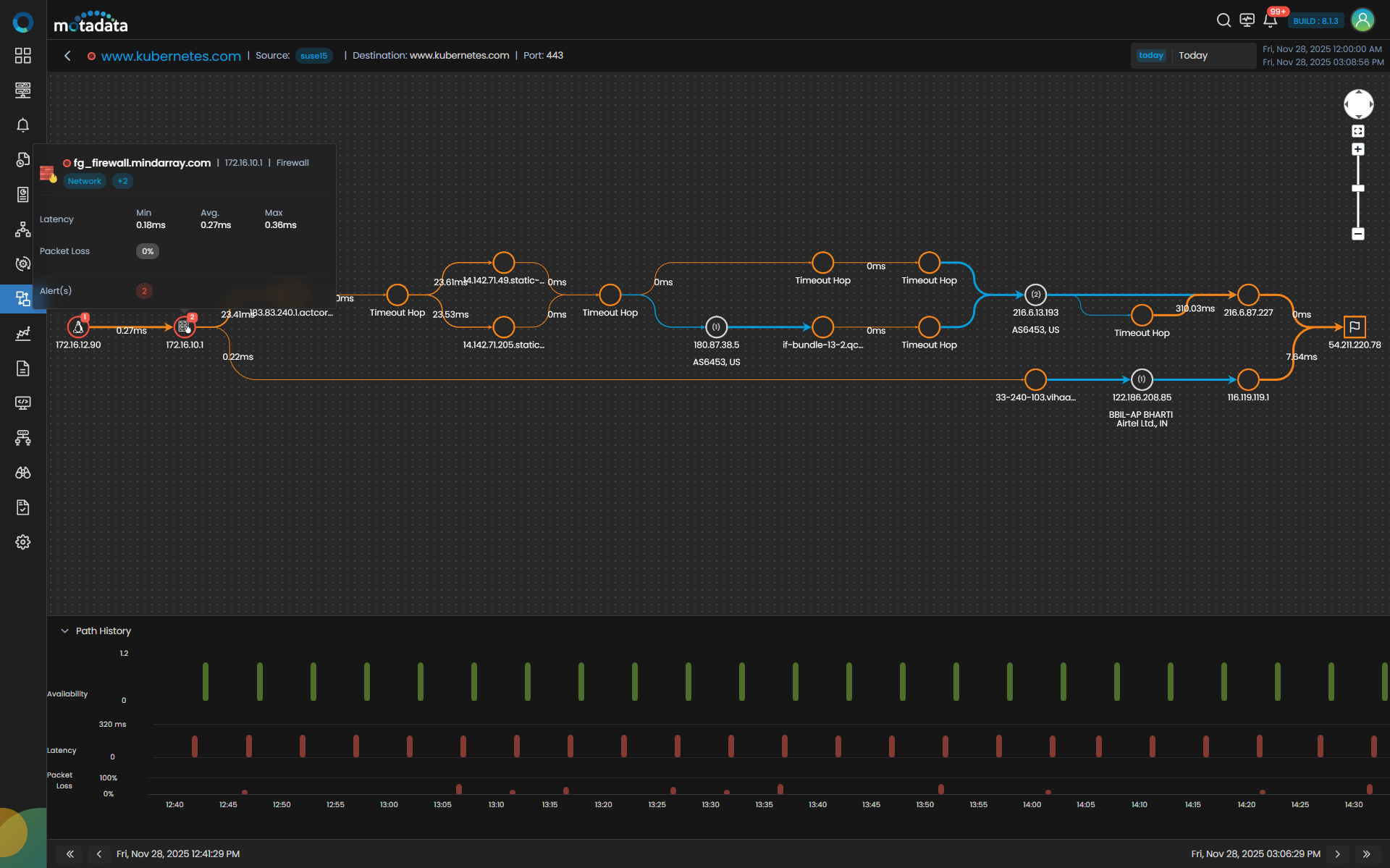
You can view a network route based on the number of times it’s traversed with traversed count. The higher the transit percentage represents darker and more highlighted line and the lower the transit percentage represents lighter and less bolder line. Additionally, if there is no traversed count then the line will be displayed as break-line type.
Use the bottom bar to adjust the time frame for better visualization of the bar chart. Click the  and
and  navigate by days, or use the and to shift the view by specific time intervals.