How to Generate a Cisco Meraki API Key for ObserveOps Discovery
Generate an API key for Cisco Meraki, so ObserveOps can discover and monitor Meraki devices through the Meraki Dashboard API.
Before You Begin
Make sure you have:
- A Cisco Meraki Dashboard account with organization-wide visibility across every organization you plan to monitor.
- A non-SSO administrator login. The Generate new API key option is only available on non-SSO accounts.
- A secure location to store the key. The Meraki Dashboard displays the key only once at generation time.
The API key inherits the permissions of the account that generated it. Use an account with read access to every organization ObserveOps must discover, otherwise devices from missing organizations will not appear in the discovery results.
Step 1. Sign in to the Meraki Dashboard
Sign in to the Meraki Dashboard with a non-SSO administrator account that has organization-wide visibility.
Step 2. Open Your Profile
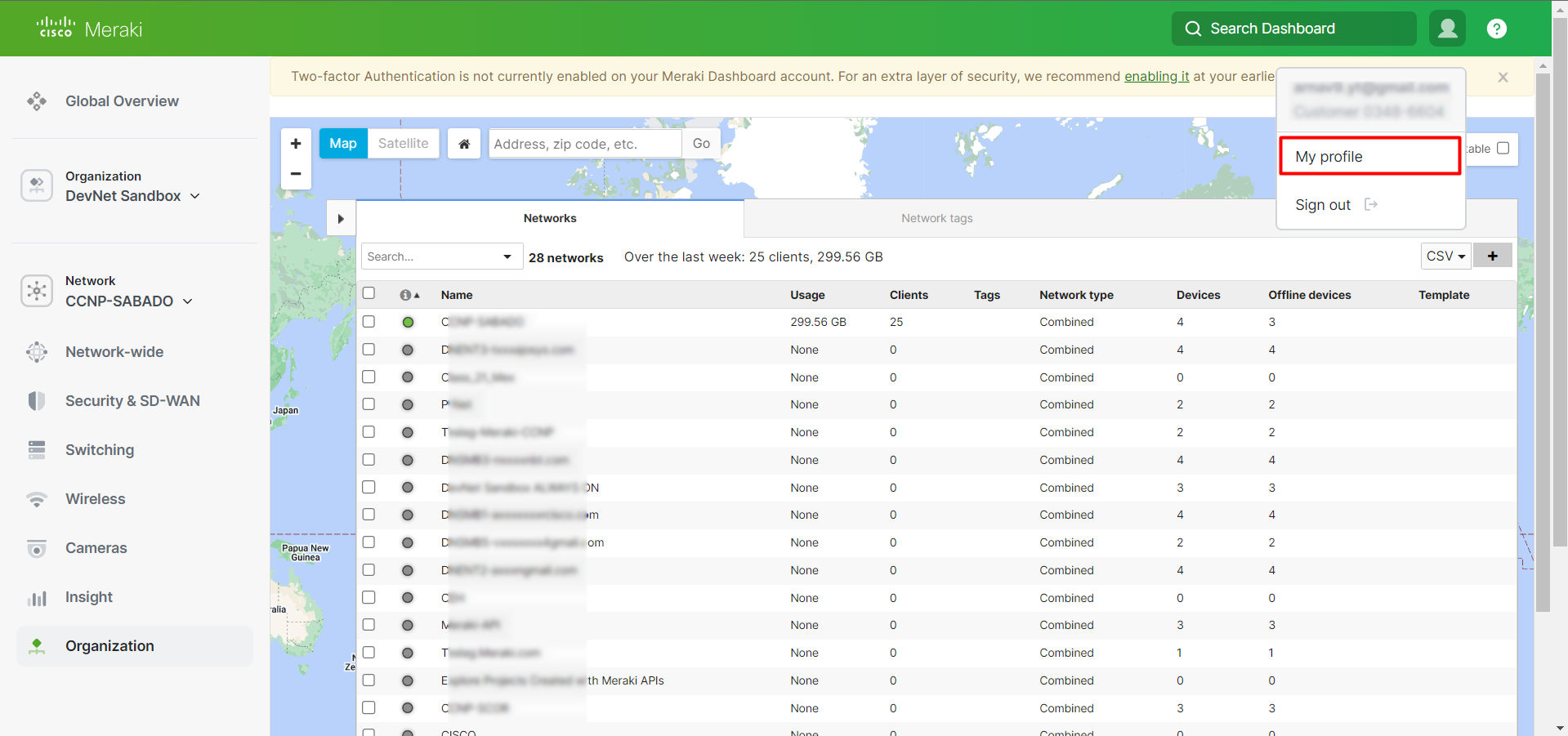
Select your account name in the top-right corner of the dashboard. Select My Profile from the menu.
Step 3. Generate a New API Key
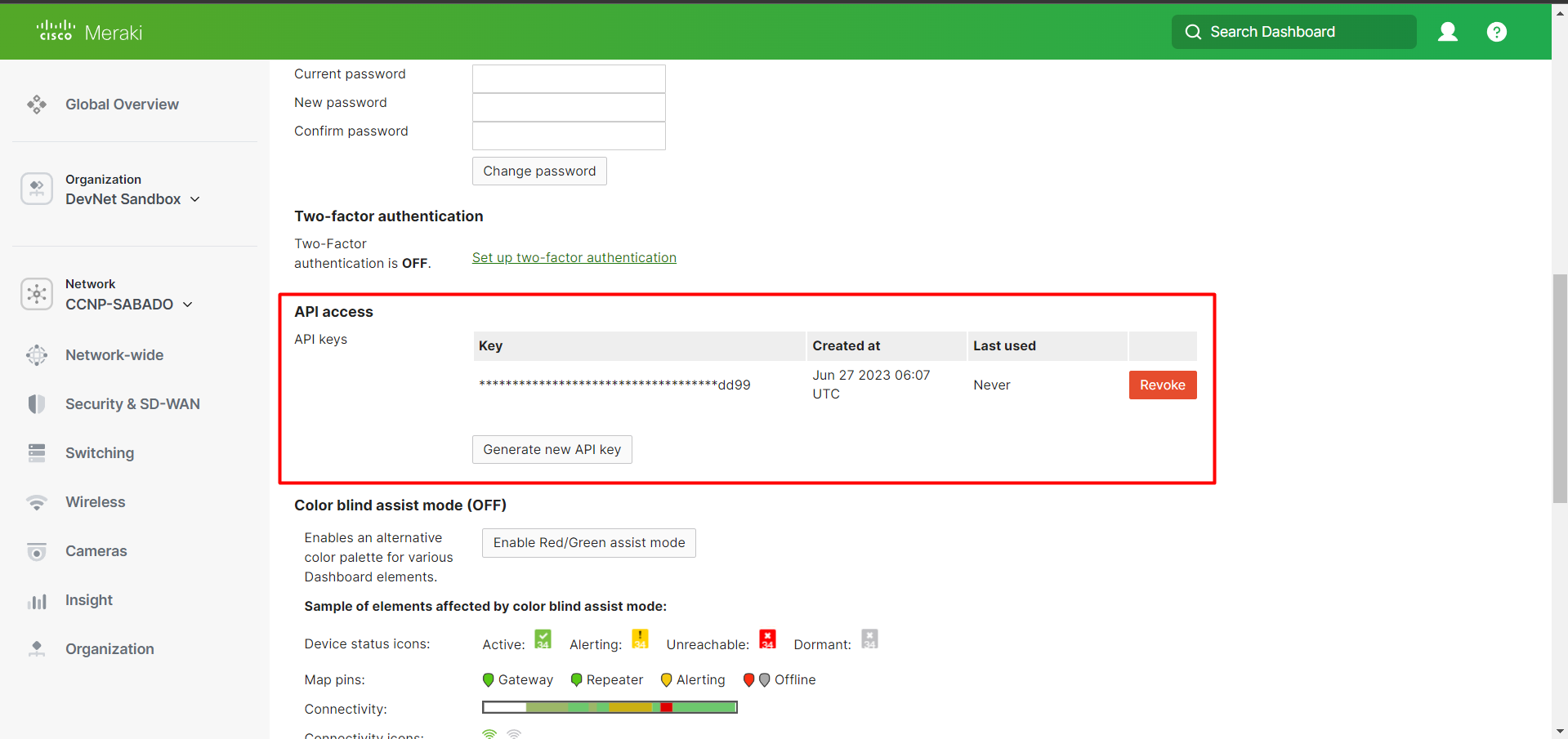
Scroll to the API access section on the My Profile page. Select Generate new API key.
Step 4. Copy the Key Immediately
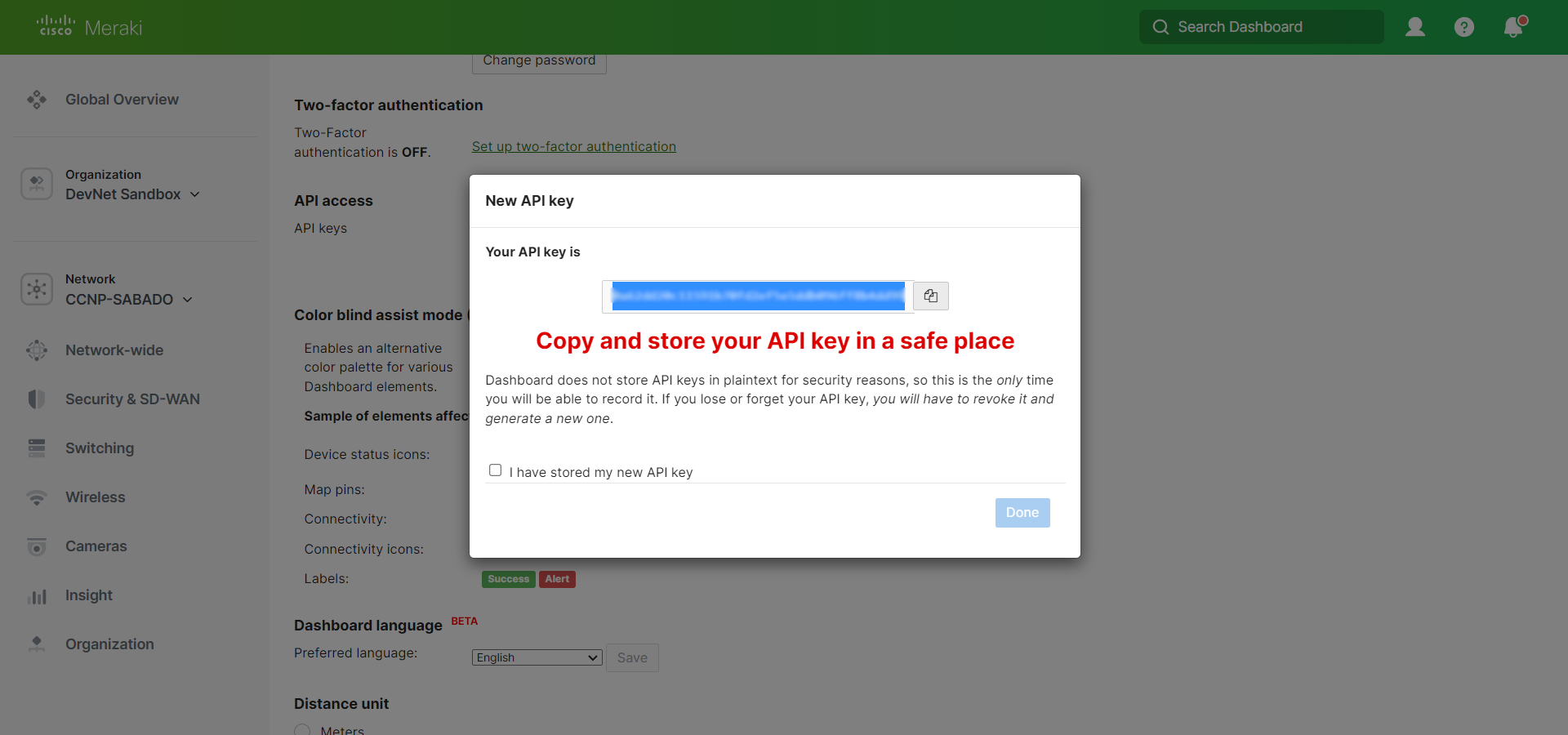
Copy the key to a secure location right away. The Meraki Dashboard hides the key value the moment you leave the page. If you lose the key, you must revoke it and generate a new one.
Result
You now have a Meraki API key that ObserveOps can use to authenticate against the Meraki Dashboard API. Paste this key into the API Key field when you create the Meraki credential profile in ObserveOps.
Next Steps
- Adding a Cisco Meraki Device: create the credential profile and discovery profile in ObserveOps using the API key you just generated.
- Cisco Meraki supported KPIs: see the full list of metrics ObserveOps collects for Cisco Meraki devices.